Is Affinity for iPad Right for Windows Designers? How to Choose in 2026
📋 Table of Contents
Affinity’s November 2, 2026 announcement describes Affinity for iPad with Sketch, Vector, Pixel, and Layout workspaces. If you mainly draw, retouch, or create away from your desk with touch and Apple Pencil, consider adding an iPad workflow; if your Windows desktop already meets project requirements, you do not need a remote Mac just to use Affinity. Evaluate a Mac separately only when a project calls for macOS-only software.
Who this is for: Windows-first illustrators, photo editors, layout designers, and freelancers deciding whether an iPad adds a useful way to work.
Also relevant: Teams that need to pass projects between devices, or designers whose work includes a separate macOS-only app.
Last updated November 8, 2026; platform and feature details checked against Affinity’s iPad product information, FAQ, desktop information, and release notes. Check those pages again before purchase: features and platform support can change.
The device decision depends on your work
Treat the iPad as a different way to interact with a project, not as an automatic upgrade to a Windows setup. The useful question is whether touch and pen input improve a task you actually perform. A new device adds little if your current workflow already meets client, output, and collaboration requirements.
Affinity’s product information describes an iPad app built around touch and Apple Pencil. That can suit direct drawing, marking up images, or making edits away from a desk. It does not mean that Windows is unsuitable for illustration or photo work; a desktop workflow can still be the better fit for precise pointer-based work, larger displays, established shortcuts, and projects that depend on desktop tools.
Is Affinity for iPad suitable if you only use a Windows computer? It can be, if you are willing to add an iPad to your workflow. The iPad is a separate device, not an iPad mode that runs on Windows. If you do not want another device and your Windows apps already handle your work, stay with your current setup rather than adding hardware for the sake of a release.
Consider the full job before deciding: starting the work, making revisions, organizing assets, collaborating, and delivering the final file. A device that feels convenient for sketching may not replace the desktop role in a production workflow.
Illustrators: pen-first work versus desktop control
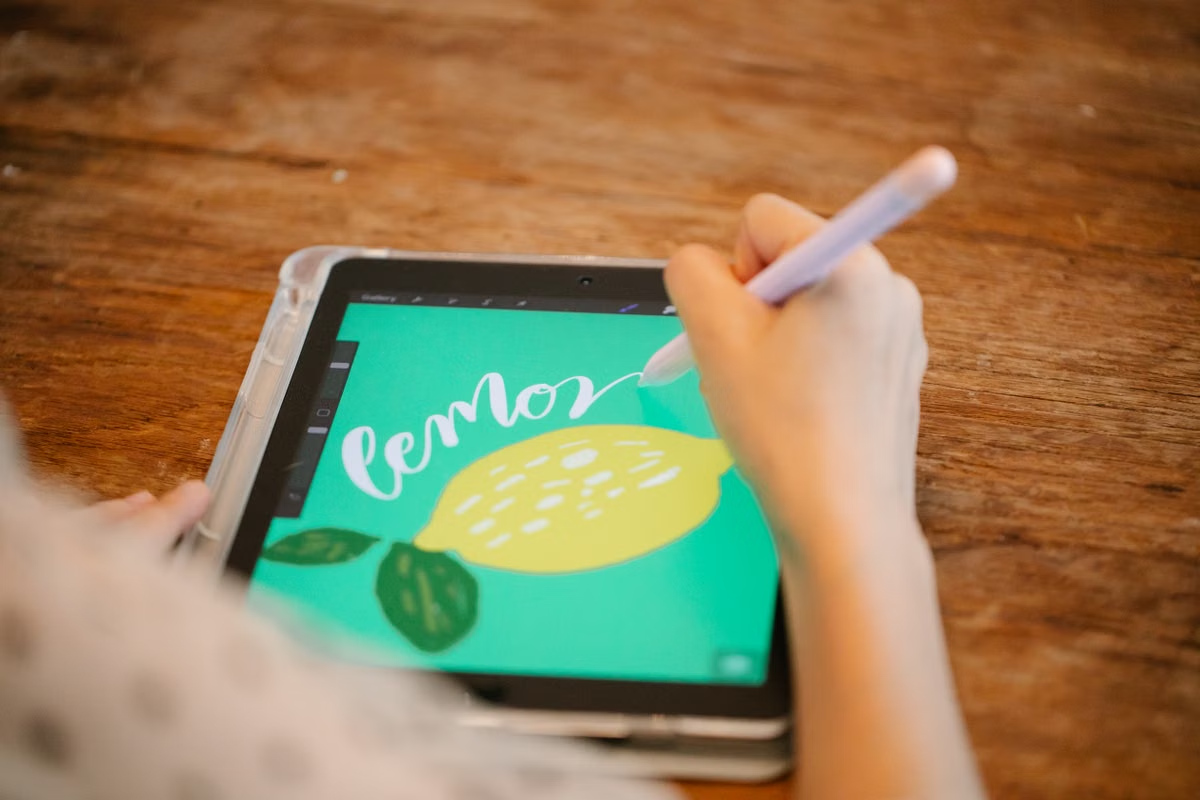
For an illustrator, the strongest reason to consider Affinity for iPad is how you prefer to make marks. Affinity’s iPad drawing guide presents an Apple Pencil-oriented drawing workflow. If you sketch directly on screen, refine shapes by hand, or want to continue an illustration while away from your desk, test those actions on the iPad before you decide.
Do not treat pen support as proof that the iPad is better for every illustration task. You may prefer Windows for managing many files, working with a keyboard and mouse, using a large display, or completing detailed edits that fit your existing desktop habits. Both workflows can be valid; the choice is about input and task fit, not whether one platform can “do illustration.”
Does an iPad replace a Windows desktop for illustration? Not by default. Use the iPad when direct drawing is a meaningful part of your work. Keep the desktop as your main workstation if it is where you organize, revise, and deliver projects most reliably.
Before committing, try a representative project rather than a blank canvas. Check whether your preferred brushes and gestures feel manageable, whether you can make the edits you need, and whether the finished work can move into the delivery process your client expects. The official drawing example is a guide to a workflow, not a guarantee about performance or the results you will get with your own project.
Photo editors: field edits versus fixed-desk finishing
For photo editors, separate quick work away from your desk from controlled finishing at a fixed workstation. Affinity’s photo-editing example for iPad shows the app being used for photo editing. This supports considering the iPad for reviewing or editing photos while travelling, or for a touch-led workflow when that suits the job.
It does not establish that every large or complex project will perform as you need, nor that a particular edit will match your established desktop process. Check the actual jobs you handle: which source files you receive, the adjustments you need, how you review detail, and how you deliver the result. If the important work happens at a desk with a familiar display and desktop tools, keep that setup for final review until you have tested an iPad handoff.
Can Affinity for iPad handle photo editing as well as illustration? The official product and photo-editing materials describe photo editing as part of the iPad workflow. Whether it fits your work depends on the edits, files, review standards, and delivery requirements in your projects. Treat the published example as evidence of a supported use case, not as a performance promise or a claim that every desktop task is available.
A useful test is to take one non-critical photo job through the whole process: open a representative file, make the edits you normally need, review it at the size and detail level required, then prepare the deliverable. Keep the original and your existing desktop process available until you know the new route meets your own acceptance criteria.
Layout designers: feature dependency before device choice
Layout work has a different decision threshold from sketching. Before adding a device, list the functions your current projects depend on: placing and revising text, managing assets, preparing output, handling repeated tasks, and coordinating versions. Then check each required function against the current iPad feature set.
Affinity’s announcement describes a Layout workspace on iPad, but that label alone does not confirm that every desktop feature is available on the iPad. The official release notes and product pages are the appropriate sources for the current feature boundary. Some desktop features were not available in the iPad release; verify their status against the latest official information before building a client workflow around them.
If a required function is desktop-only, compare the Windows desktop edition first. Affinity’s desktop product information gives you a place to check the current desktop offering. A missing iPad feature does not automatically create a Mac requirement. If your Windows desktop can perform the required work, it may remain the simplest production choice.
How should you choose between Affinity for iPad and the Windows desktop edition? Choose the iPad when touch or Apple Pencil is central to the task and the current iPad feature set covers the job. Choose the Windows desktop edition when a required desktop function, established production process, or file-management task makes the desktop the safer fit. Use both only when the handoff is worth the extra device and coordination.
| Creative role or need | iPad workflow fit | Windows desktop fit | Decision rating |
|---|---|---|---|
| Drawing directly with a pen | Strong when touch and Apple Pencil are central | Strong when you prefer a desktop input setup | iPad for pen-first work |
| Photo edits away from a desk | Worth testing for a mobile editing task | Better aligned with an established fixed-desk process | Conditional |
| Layout work with required desktop-only features | Check each dependency against current iPad information | Evaluate the Windows desktop edition before adding a Mac | Desktop first |
| Existing Windows process already meets delivery needs | Optional addition, not an automatic upgrade | Keep as the primary workflow | Windows first |
| A separate macOS-only app is required | iPad does not provide that Mac environment | Windows alone may not meet that separate requirement | Assess Mac separately |
These are workflow-fit ratings, not benchmark results. They do not measure speed, image quality, or performance on a particular device. Use them to decide what to test, then confirm the choice with one of your own representative projects.
Freelancers and teams: cross-device access is not a handoff policy
Affinity’s iPad FAQ confirms that the desktop and iPad versions can work with the same .af files. That gives a team a possible route to continue a project across devices. It does not mean that every project will look or behave identically in every workflow, or that opening a shared file settles who owns the final review.
Before you adopt cross-device work, agree on where the current file lives, who makes the next edit, and who approves the final delivery. Tell collaborators which version to open and how to identify the accepted file. For client work, test the actual handoff with the receiving person and the required deliverable format rather than assuming that a shared project file satisfies every delivery requirement.
Can a Windows designer use the iPad version and continue the same Affinity project? The official FAQ confirms use of the same .af file across desktop and iPad. That is a supported file workflow, not a blanket guarantee that all effects, assets, fonts, or final output will match your expectations. Test a copy of a representative project and verify the delivered result with the recipient.
A team should also assign responsibility for final checks. If someone makes a touch-based edit on the iPad, decide who checks the result on the production desktop and who signs off on the deliverable. That small agreement prevents “the file opened” from being mistaken for “the client-ready output was verified.”
Mac-only tasks: a separate decision from Affinity
Keep the Affinity device choice separate from any need for macOS-only software. If your project also requires an app such as Sketch or Final Cut Pro, decide how you will complete that specific task. A Mac environment may be relevant for that work, but it does not replace the iPad’s touch surface or Apple Pencil input. Nor should you assume that access to a Mac includes a license for any app you plan to use.
Do Windows designers need a remote Mac to use Affinity for iPad? No. Affinity for iPad is an iPad workflow. A remote Mac is a separate option to evaluate only when another part of the project requires macOS. It is not a workaround that turns a Windows computer into an iPad or supplies pen input.
If you are weighing remote access, first establish that the specific software and task need macOS. Then check the access method, project requirements, licensing, and how you will transfer the completed work. For a broader comparison of Mac access models, see bare metal and macOS virtualization. If you are also considering ownership, compare the long-term costs in this Mac mini pricing guide before choosing between buying and temporary access.
Use this checklist before buying a device or changing a client workflow:
- [ ] Name the project task you expect the iPad to improve; do not use “try the new app” as the business requirement.
- [ ] Identify whether direct touch or Apple Pencil input is central, optional, or irrelevant to that task.
- [ ] List every desktop function your project requires, then confirm its current iPad availability on Affinity’s official pages.
- [ ] Test a copy of a representative file, including the edits and output checks that matter to your client.
- [ ] Agree with collaborators on file ownership, handoff, version naming, and final approval.
- [ ] Confirm the recipient’s delivery requirements before treating cross-device file access as a completed workflow.
- [ ] If a separate macOS-only app is involved, verify its platform and licensing requirements independently of Affinity.
- [ ] If you are considering remote Mac access, compare the required task and expected duration with owning or using your current Windows setup.
If your Windows workflow already covers your design work, adding an iPad brings an extra device and a handoff to manage without necessarily removing desktop dependencies. A Mac introduces a different set of trade-offs: remote access depends on a network connection, adds setup and file-transfer steps, and does not provide Apple Pencil interaction or automatically include app licensing. If a project genuinely requires macOS, temporary access may be more appropriate than buying a Mac for occasional work; check the current MacDate Mac access options against the software, access, and duration you actually need. If the work is pen-first, choose an iPad workflow; if it is desktop-first and already works on Windows, keep that workflow.